Top 20 Interview Questions For HTML and CSS.
PART-1 HTML
Question No-1: What are the new features introduced in HTML 5?
HTML 5 introduces a number of new elements and attributes that help in building an attractive web Site, that we see nowadays.
It supports following new features.
- New Semantic Elements — These are like <header>, <footer>, and <section>.
- Forms 2.0 — It contains improvements to HTML web forms. It has introduced new attributes for the <input> tag.
- Persistent Local Storage — With HTML5, it is possible to achieve this, without resorting to third-party plugins.
- WebSocket — It facilitates setting up a bidirectional communication for web applications.
- Server-Sent Events(SSE) — These events got introduced in HTML5. The direction of the flow of the execution of these events is from the server to the Web Browser.
- Canvas — It supports a two-dimensional drawing surface that is programmable using JavaScript.
- Audio & Video — It allows embedding audio or video on the web pages without resorting to third-party plugins.
- Geolocation — It facilitates the visitors to share their physical location with the web application.
- Microdata — It allows building our personal vocabulary beyond HTML5 and extends our web pages with those custom semantics.
- Drag and drop — It supports to Drag and drop the items from one location to another location on the same Web page.
Question No-2: What are the new Form elements made available in HTML 5?
When we want to collect some data from the person visiting our site, we use HTML Forms. An example is, the user has to enter his name, email id when he registers for the first time.
A form takes input from the site visitor and then posts it to a back-end application such as CGI, ASP Script or PHP script. The back-end application will then perform required processing on the passed data based on defined business logic inside the application.
There are various form elements available in earlier version of HTML like, text fields, text area fields, drop-down menus, radio buttons, checkboxes, etc.
HTML5 provides the support of some new Form elements that are as follows.
- <datalist> — It represents a list of pre-defined options for input controls.
- <keygen> — It defines a key-pair generator field (for forms).
- <output> — It represents the result of the calculation.
Question No-3: What is a semantic element in HTML5? Also, explain the difference between semantic and non-semantic elements?
Semantic elements are one of the new features that are part of HTML5. They intend to help the developers in quickly creating the page structure.
A semantic element has its meaning expressed to both the browser and the developer. Also, all the modern browsers support this feature. However, it is possible for a developer to train old browsers to handle unknown elements.

Here is the list of some of the commonly used HTML5 Semantic Elements.
- <article>
- <figcaption>
- <figure>
- <header>
- <footer>
- <nav>
- <section>
- <article>
- <aside>
- <summary>
The difference — Semantic Vs. Non-semantic.
Semantic — These elements clearly describe their content like <img>, <form>, <table> etc.
Non-semantic — These elements are without any definition. They don’t describe anything about their structure such as <span> and <div>.
Question No-4: What is HTML5 Graphics?
In HTML5, there are two types of graphics.
Scalable Vector Graphics (SVG).
- The HTML5 <svg> element is a container for SVG graphics. It provides several methods for drawing boxes, paths, text, circles, and graphic images.
- SVG is beneficial as nowadays, people are using high-resolution devices (iPads and Monitors), so it becomes impressive as designs, logos, and charts scale according to the requirement, maintaining the picture quality.
- SVG is XML based, which means that every element is available within the SVG DOM. It treats every shape as an object. If the user changes the attributes of any SVG object, the browser will automatically re-render the shape.
Canvas.
- It is a rectangular area on the HTML page for drawing graphics on the fly, using JavaScript.
- The default size of the canvas is 300 PX × 150 PX (width × height).
- The HTML tag <canvas> is a container for the Canvas graphics. Canvas gets executed on the pixel by pixel basis.
- In Canvas, browser forgets the graphic, after drawing it. If the user tries to modify it, the entire scene needs to be redrawn, including all the objects present in the graphic.
Question No-5: How can we create a new HTML element?
We can even create new elements for the document as follows.
<script>
document.createElement﴾"myElement"﴿
</script>
It can be used in the HTML as.
<myElement>hello</myElement>
Question No-6: What is HTML5 Web Storage?
HTML5 Web Storage, also known as DOM Storage is a way to preserve state on either the client or server which makes it much easier to work against the stateless nature of HTTP. It allows the web pages to store the data locally in the user’s browser.
Following are the advantages of HTML5 Web Storage.
- It can store 5 to 10 MB data. That is far more than what cookies allow.
- HTML5 never transfers Web storage data with any HTTP request. Thus creating less overhead than cookies and in turn, increase the performance of the application.
- Apps can work both online and offline.
- This API is easy to learn and use.
Question No-7: Explain the key differences between localStorage and sessionStorage objects?
Following are the key differences between localStorage and sessionStorage objects.
- The localStorage object stores the data without an expiry date. However, sessionStorage object stores the data for only one session.
- In the case of a localStorage object, data will not delete when the browser window closes. However, the data gets deleted, if the browser window closes, in the case of sessionStorage objects.
- The data in sessionStorage is accessible only in the current window of the browser. But the data in the localStorage can be shared between multiple windows of the browser.
Question No-8: What is a Manifest file?
A Manifest file is a simple text file, that tells the browser what to cache and what not to cache.
A Manifest file contains three Sections as
- CACHE MANIFEST — HTML5 performs the caching of files listed under this section after
they get downloaded for the first time. - NETWORK — Files listed here, always need a connection to the server. The browser can never cache them.
- FALLBACK — Files listed here specify the fallback pages, if any page in it is not accessible.
Question No-9: What is a Web Worker? How does it work?
JavaScript will hang the browser if it has to handle UI events, query large amounts of API data for processing, and manipulate the DOM simultaneously.
Web Workers handle this situation by doing all the high computation tasks without interrupting the user interface. They do this by running on separate threads. Thus we can say that.
- A web worker is a script, which runs in the background. It exists in external files.
- The user can perform actions like clicking, selecting things and so on. Meanwhile, the Web worker runs in the background.
- It is appropriate, to use Web worker for CPU intensive tasks.
Since Web workers are in external files, they do not have access to the following JavaScript objects.
- The window object
- The document object
- The parent object
Question No-10: When should you use section, div or article?
<section>, group of content inside is related to a single theme, and should appear as an entry in an outline of the page. It’s a chunk of related content, like a subsection of a long article, a major part of the page (eg the news section on the homepage), or a page in a webapp’s tabbed interface. A section normally has a heading (title) and maybe a footer too.
<article>, represents a complete, or self-contained, composition in a document, page, application, or site and that is, in principle, independently distributable or reusable, e.g. in syndication. This could be a forum post, a magazine or newspaper article, a blog entry, a user-submitted comment, an interactive widget or gadget, or any other independent item of content.
<div>, on the other hand, does not convey any meaning, aside from any found in its class, lang and title attributes.
PART-2: CSS
Question No-1: Name all the modules which are used in the current version of CSS.
There are several modules in CSS as stated below:
- Selectors
- Box Model
- Backgrounds and Borders
- Text Effects
- 2D / 3D Transformations
- Animations
- Multiple Column Layout
- User Interface.
Question No-2: What is the CSS Box model and what are its elements?
The CSS box model is used to define the design and layout of elements of CSS.
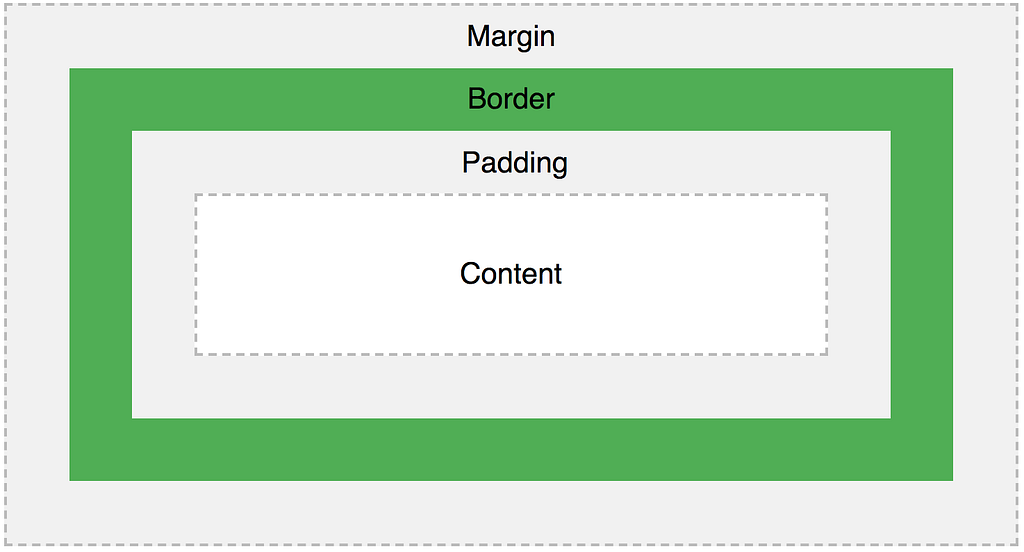
The elements are:
Margin — It removes the area around the border. It is transparent.
Border — It represents the area around the padding
Padding — It removes the area around the content. It is transparent.
Content — It represents content like text, images, etc.
Question No-3: Write all the properties of the flexbox.
There are several properties of the flexbox that are used in the HTML webpage.
They are:
- flex-direction
- flex-wrap
- flex-flow
- justify-content
- align-items
- align-content
Question No-4: What is the difference between padding and margin?
In CSS, the margin is the property by which we can create space around elements. We can even create space to the exterior defined borders.
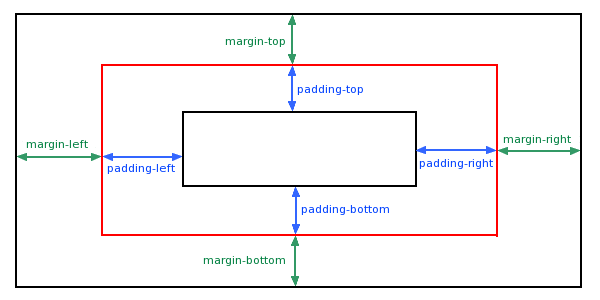
In CSS, we have margin property as follows:
- margin-top
- margin-right
- margin-bottom
- Margin-left
Margin property has some defined values as shown below.
- Auto — Using this property browser calculates the margin.
- Length — It sets the margin values in px,pt,cm etc.
- % — It sets the width % of the element.
- Inherit — By this property we can inherit the margin property from the parent element.
In CSS, padding is the property by which we can generate space around an element’s content as well as inside any known border.
CSS padding also has properties like,
- Padding-top
- Padding-right
- Padding-bottom
- Padding-left
Negative values are not allowed in padding.
div {
padding-top: 60px;
padding-right: 40px;
padding-bottom: 50px;
padding-left: 70px;
}
Question No-5: What are pseudo classes and what are they used for?
Pseudo classes are similar to pseudo elements, but instead of styling a part of an element, they apply styles when an element is in a certain state. For example, you could style a button differently based on whether the user has their mouse pointer over it, or when they click the button.

Another common use case is to style only certain occurrences of elements in a row. For example, styling the first tab in a series of tabs, or every second tab.
They all start with a single colon and look like this:
.link:hover { ... }
.link:active { ... }
.tab:first-child { ... }
.tab:last-child { ... }
.avatar:nth-child(2n) { ... }
Question No-6: Should you use !important?
When you’re wrestling with specificity, trying to override that one style, you may be tempted to add !important to your style. Think very carefully before you do so! It may seem harmless, but if you do this all over the place, you will soon find yourself in a big mess that you cannot get out of.
What !important does, is make that particular style have the highest specificity possible. Nothing else can override it, apart from another !important. You might be able to see where this is going, but once you start using them, you’ll almost certainly get into a position where you need to override a rule marked as !important, which forces you to use another one. And so the cycle continues.
/* high specificity */
.large .navigation.navigation-large {
    font-size: 2em;
}
/* will override the above, but it's dangerous! */
.navigation {
    font-size: 3em !important;
}
Question No-7: What are the differences between relative and absolute in CSS?
The main difference between relative and absolute is that “relative” is used for the same tag in CSS and it means that if we write the left:10px then the padding will shift to 10px in the left while absolute is totally relative to the non-static parent.

It means, if we write left:10px then the result will be 10px far from the left edge of the parent element.
Question No-8: How would you use media queries in a mobile-first approach?
There’s no way to avoid these nowadays, everyone expects their website to work on mobile devices, even if they don’t specifically ask for it.
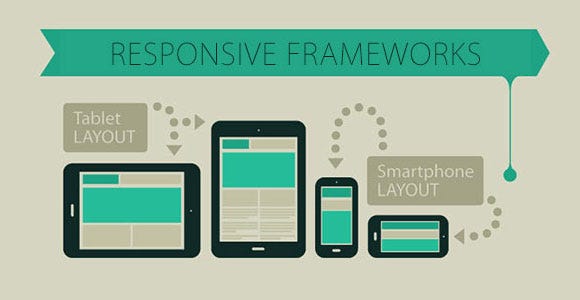
The most common approach is the mobile-first one. All styles outside of media queries are targeted at mobile devices. Then, through progressively larger media queries, you can style larger screens one step at a time.
/* mobile styles */
body {
    font-size: 1em;
}
/* desktop styles */
@media only screen and (min-width: 768px) {
    body {
        font-size: 1.5em;
    }
}
Question No-9: Differentiate between inline and block element.
Inline element does not have an element to set width and height and also it does not have the line break.
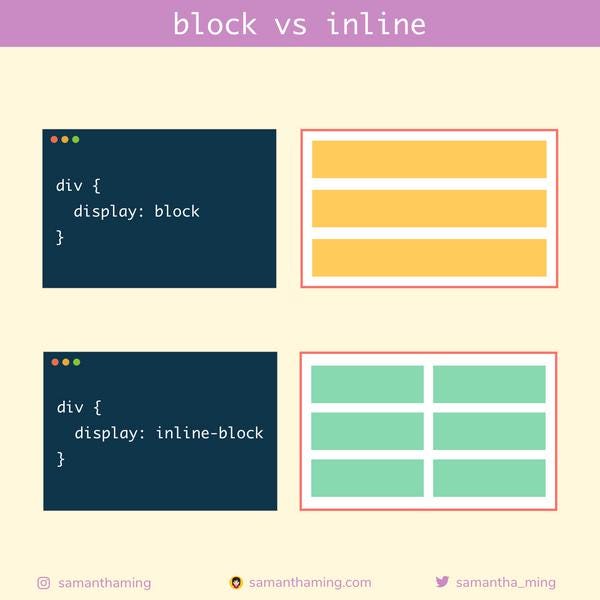
Example: em, strong, etc.
Block element specification:
- They do have the line break.
- They define the width by setting a container and also allow setting height.
- It can also contain an element that occurs in the inline element.
Example:
width and height
max-width and max-height
min-width and min-height
hi (i=1–6)- heading element
p- Paragraph element.
Question No-10: Do you use any CSS preprocessors, and which do you prefer?
If you’re working on a medium to large project, it’d be a good idea to use a CSS preprocessor. They allow you to write more concise CSS, split it up into multiple files and use a large number of very useful functions and mixins (you can even create your own!), along with variables.
The main players are Sass (also referred to as SCSS), LESS and Stylus, although arguably Sass is the biggest.